 Fitiva
What are weekly check-ins?
Check-ins are short surveys with your own questions; you build them from an athlete's Check Ins tab, and Fitiva reminds the athlete when one is due.
A check-in is a short survey with your own questions: mood, sleep, stress, energy, weight or anything else you want to know. You build the form from an athlete's page, choose how often it comes, and read the answers in the same place. It is separate from the daily check-in that athletes do on their dashboard.
Build a form
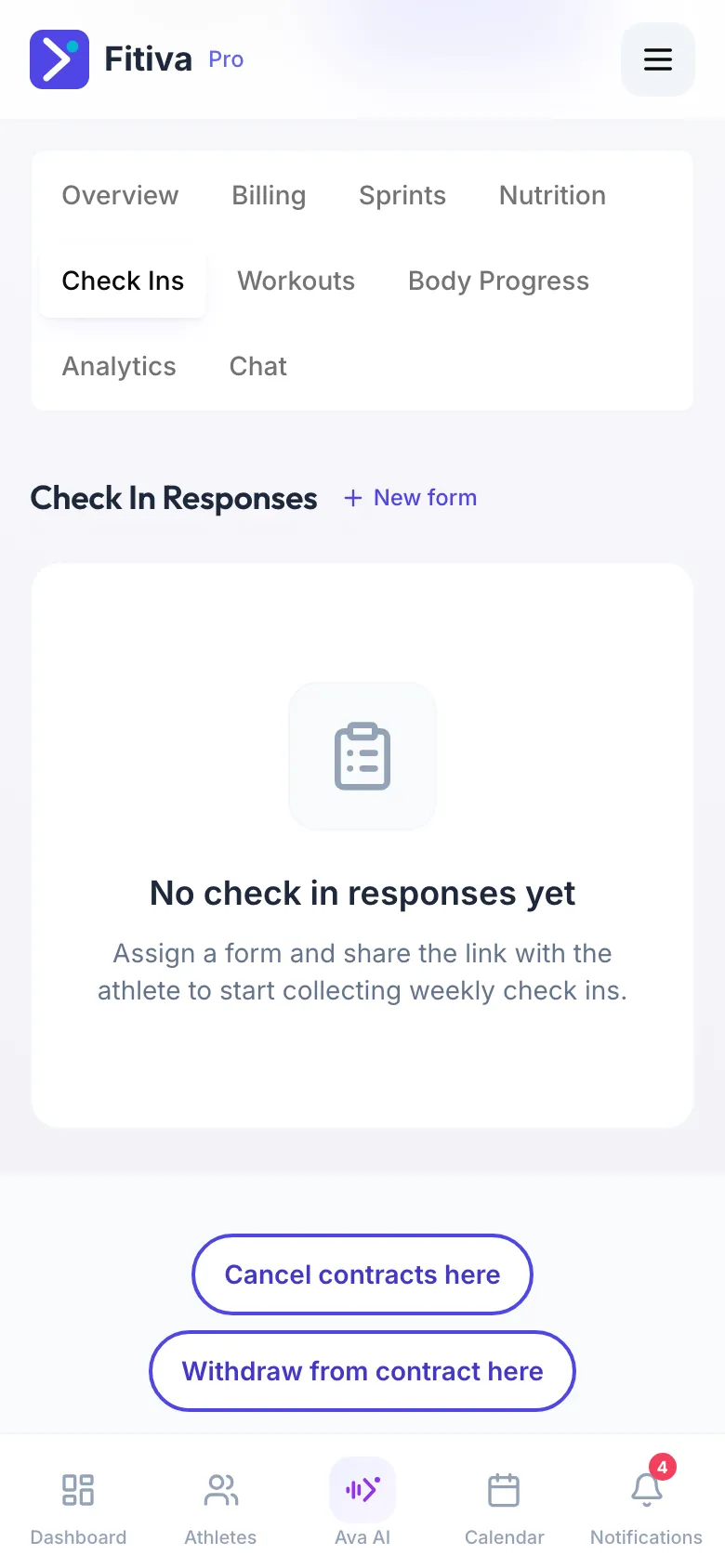
- Open the athlete and go to the Check Ins tab.
- Press New form. The Check-in form builder opens.
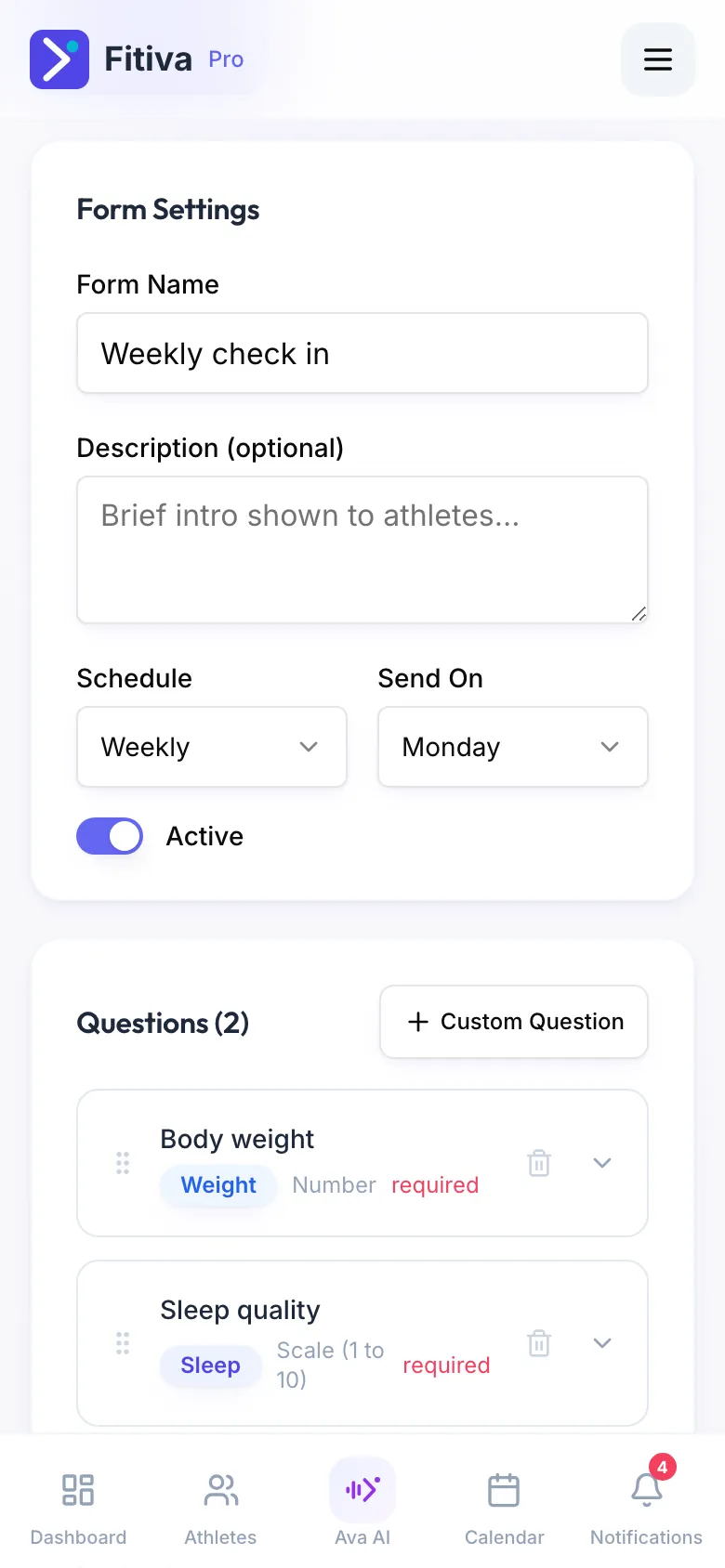
- Under Form Settings give it a Form Name, a description if you like, a Schedule (Weekly, Bi weekly, Monthly or Manual Only) and the day under Send On.
- Add questions. Tap a Quick Add preset (Body weight, Sleep duration, Sleep quality, Stress level, Energy level, Overall mood, Diet adherence, Muscle soreness, Additional notes) or add a Custom Question. The types are Scale (1 to 10), Number, Text, Multiple Choice and Yes / No.
- Under Assign to Athletes tick who receives it.
- Press Save Form.
What the athlete sees
The form shows on their dashboard as Weekly check-in with "Your coach wants an update". They answer and press Submit Check-in. When a form is due and not answered, Fitiva sends them a reminder. You can also send the link yourself: on the Check Ins tab, press Share followed by the form's name.
Where the answers go
Answers land on the athlete's Check Ins tab. You get an email for each one if Athlete check-ins is on under email notifications in Settings. How to read them and mark them reviewed is explained in "How do I review an athlete's check-in?".
Looking for something else?