 Fitiva
How do I use the exercise library?
Add your own exercise guides with video, pictures and instructions; your athletes see them when they open that exercise in a workout from you.
The Exercise Library holds your own exercise guides: a video, pictures and step-by-step instructions. Your athletes see them when they open that exercise in a workout you gave them.
- Open Exercise Library in the menu.
- Press Add Exercise.
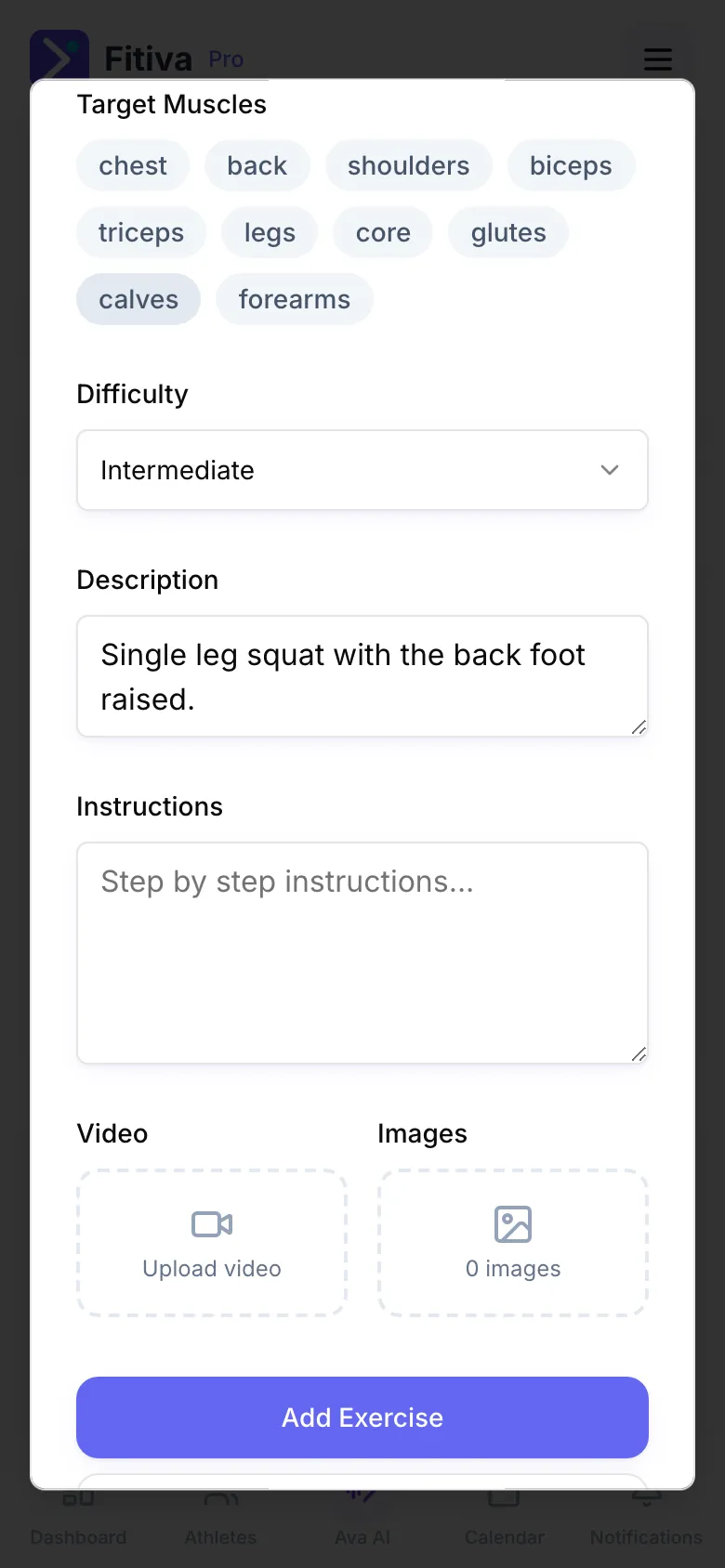
- Fill in the Exercise Name, the Target Muscles, the Difficulty, a short Description and the Instructions.
- Under Video press Upload video, and add pictures under Images.
- Press Add Exercise to save it.
How athletes see it
When an athlete opens an exercise in a workout from you, Fitiva looks in your library for an exercise with the same name. If it finds one, they see your video and instructions. So name library entries exactly as you name the exercise in your routines, for example "Barbell Bench Press". Upper and lower case do not matter.
Good to know
- Search your library with the search field, and open an entry to see it the way athletes do.
- Delete removes the guide. Your routines keep the exercise.
- An athlete without a coach does not see library entries.
Looking for something else?