 Fitiva
How do I set my availability?
In the Calendar, press the cog (Availability settings) and add working blocks with the days, hours and session lengths you have priced.
Athletes can book you only inside your working blocks, and only for session lengths you have priced under Financials.
- Open Calendar and press the cog icon at the top (Availability settings). Availability Settings opens.
- Under Add a working block tap the Days, or press Monday to Friday to pick all five at once.
- Set the Start Time and End Time.
- Under Session lengths athletes can book pick the lengths for this block. Only lengths with a price appear here; add more under Financials.
- Switch on Allow Video Sessions if you also coach by video.
- Press Add block.
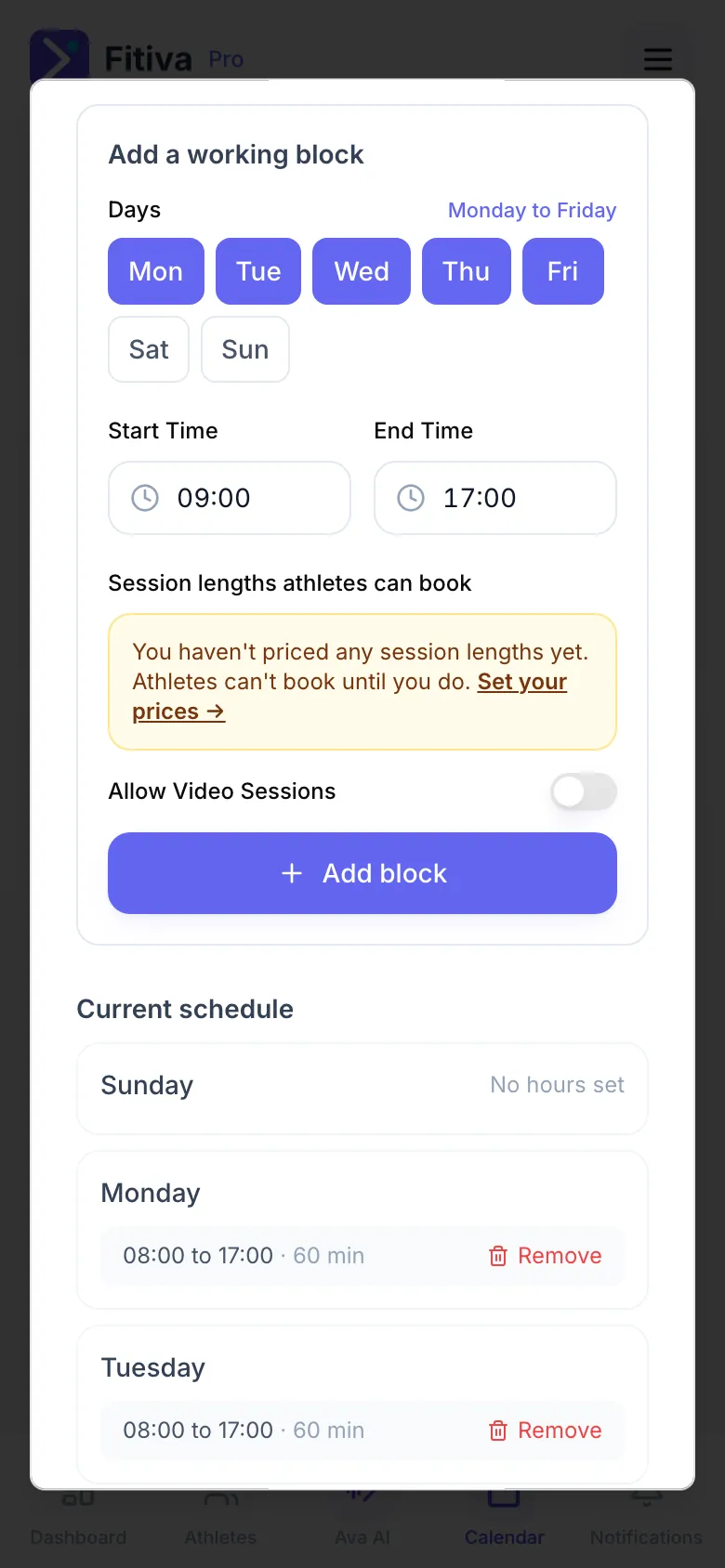
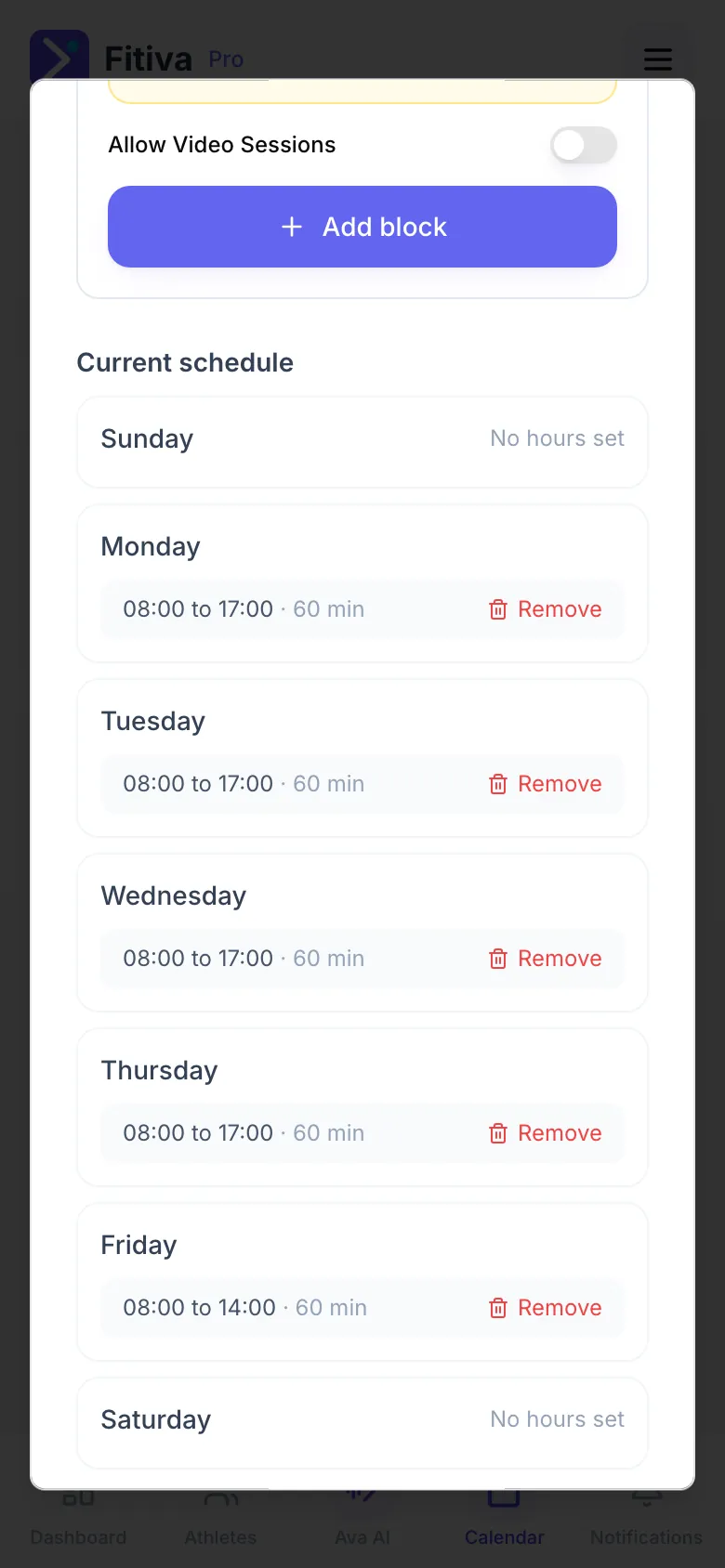
Current schedule lists your blocks. Remove deletes one, and athletes can then no longer book those hours. Your Booking Link at the top is the link to your booking page, ready to copy.
Good to know
- Blocks on the same day cannot overlap. For a split day, add two blocks, for example mornings and evenings.
- Without any price, your hours still save, but athletes can only send a request, not pay. Set prices in Financials under Session pricing.
- Holidays and days off go under Time off in the calendar, not here.
- Changing your hours does not touch sessions that are already booked.
Looking for something else?