 Fitiva
How do I log a meal?
Tap Log a meal on your dashboard, then describe it, take a photo, pick foods from the list or type the numbers yourself.
Tap Log a meal on your dashboard. You can describe the meal, take a photo, pick foods from the food list or type the numbers yourself, then save.
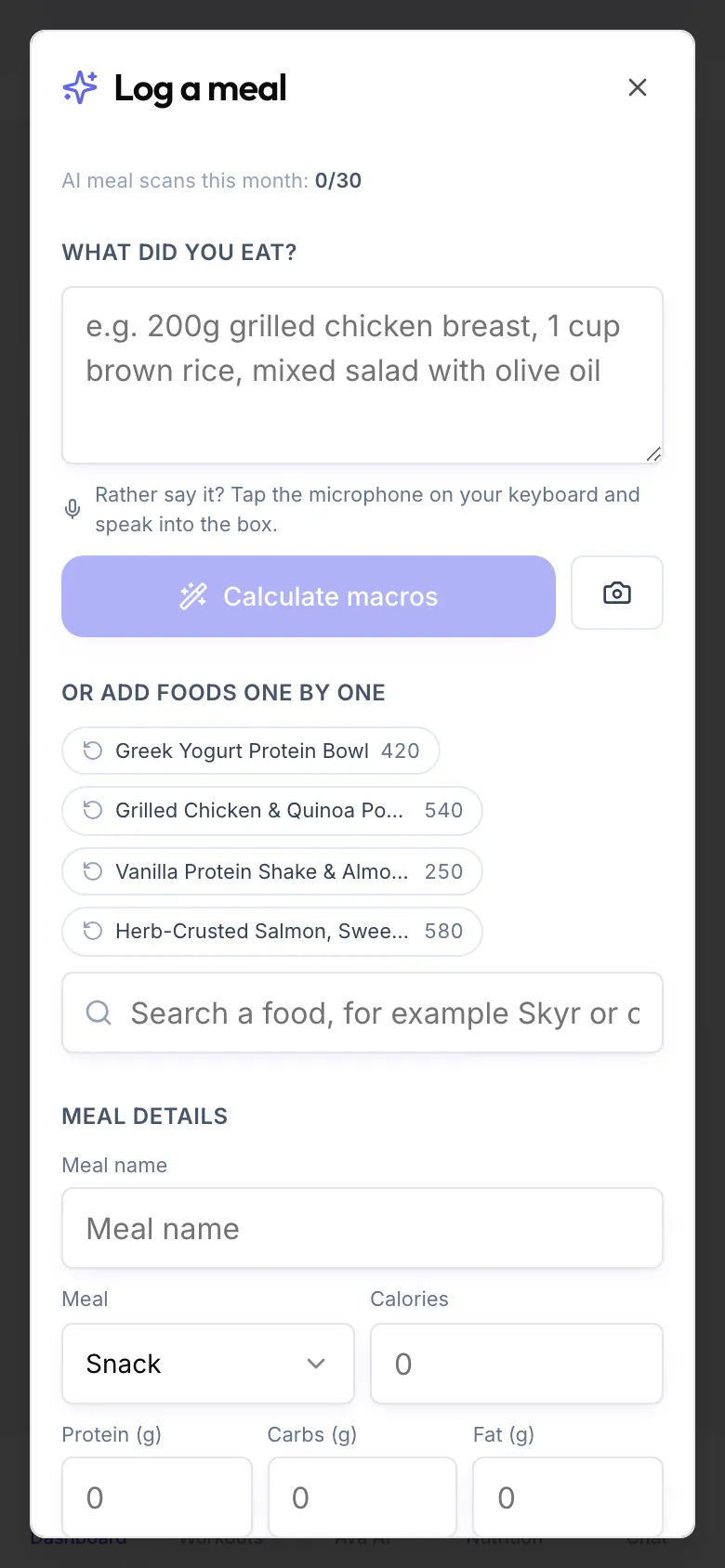
- On your Dashboard, tap Log a meal: the + next to Today's nutrition, or the button under your meals. On the Nutrition page without a plan the button is called Add Meal.
- Pick one way in:
- Describe it: write what you ate under What did you eat?, for example "200 g chicken, 150 g rice", and tap Calculate macros.
- Photo: tap Photo and take or choose a picture of your plate.
- Food list: under Or add foods one by one, search for a food, set the amount and add the next one.
- By hand: type the calories, protein, carbs and fat under Meal details.
- Check the numbers under Meal details. You can change every field.
- Pick the Meal (Breakfast, Lunch, Dinner or Snack) and give it a name.
- Tap Save meal.
After Calculate macros or a photo you see the AI breakdown: every item with its calories and a confidence level, and the fields are filled in for you.
The food list shows the kcal per 100 g for every result. It is free, has no limit and never uses a scan.
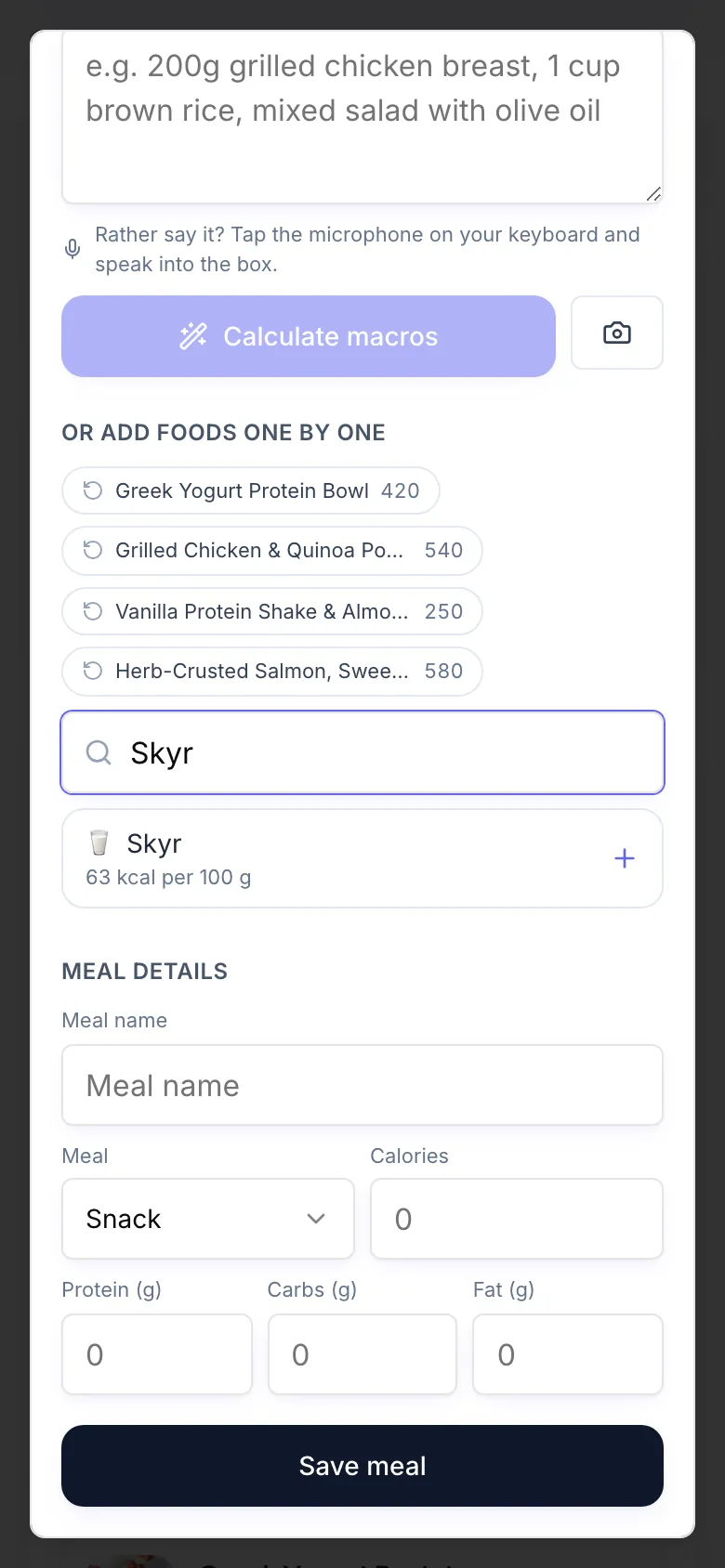
What counts as a scan: a description and a photo both use one AI meal scan. The free plan has 1 a month, Premium 30 a month, and every plan has a daily limit on top. A photo with nothing recognisable on it does not use a scan.
Rather speak? Tap the microphone on your keyboard and speak into the box.
What happens next: the meal counts towards your calorie ring and your macros right away, earns 5 points, keeps your streak going, and your coach sees it.
Good to know
- A meal is always saved for today. Forgot one from yesterday? Tell Ava, for example "log my dinner from yesterday". She logs it on that day, up to 30 days back.
- Ava can also log a meal from a single sentence in the chat.
Looking for something else?