 Fitiva
How do payment links work?
A payment link books and charges one dated session with someone who is not on Fitiva; when they pay, the session lands in your calendar.
A payment link is for ONE session with a customer who does not use Fitiva, for example someone who found you on Instagram. They pay by card, and the session books itself.
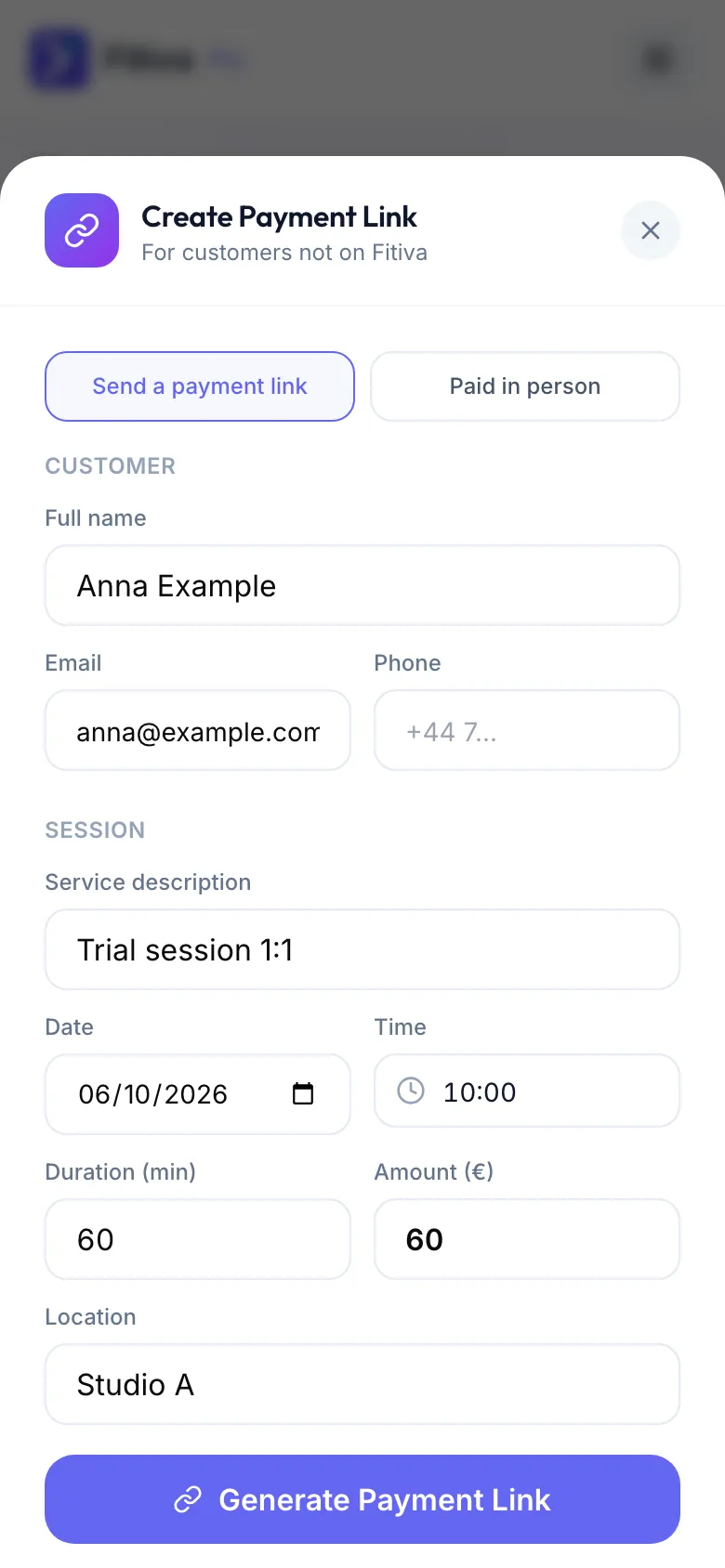
- Open Financials and press Payment Link. You get the same form from Calendar → Add booking → One off payment link.
- Keep Send a payment link selected at the top.
- Under Customer fill in Full name, Email and Phone.
- Under Session fill in the Service description, Date, Time, Duration (min), Amount (€) and Location.
- Press Generate Payment Link.
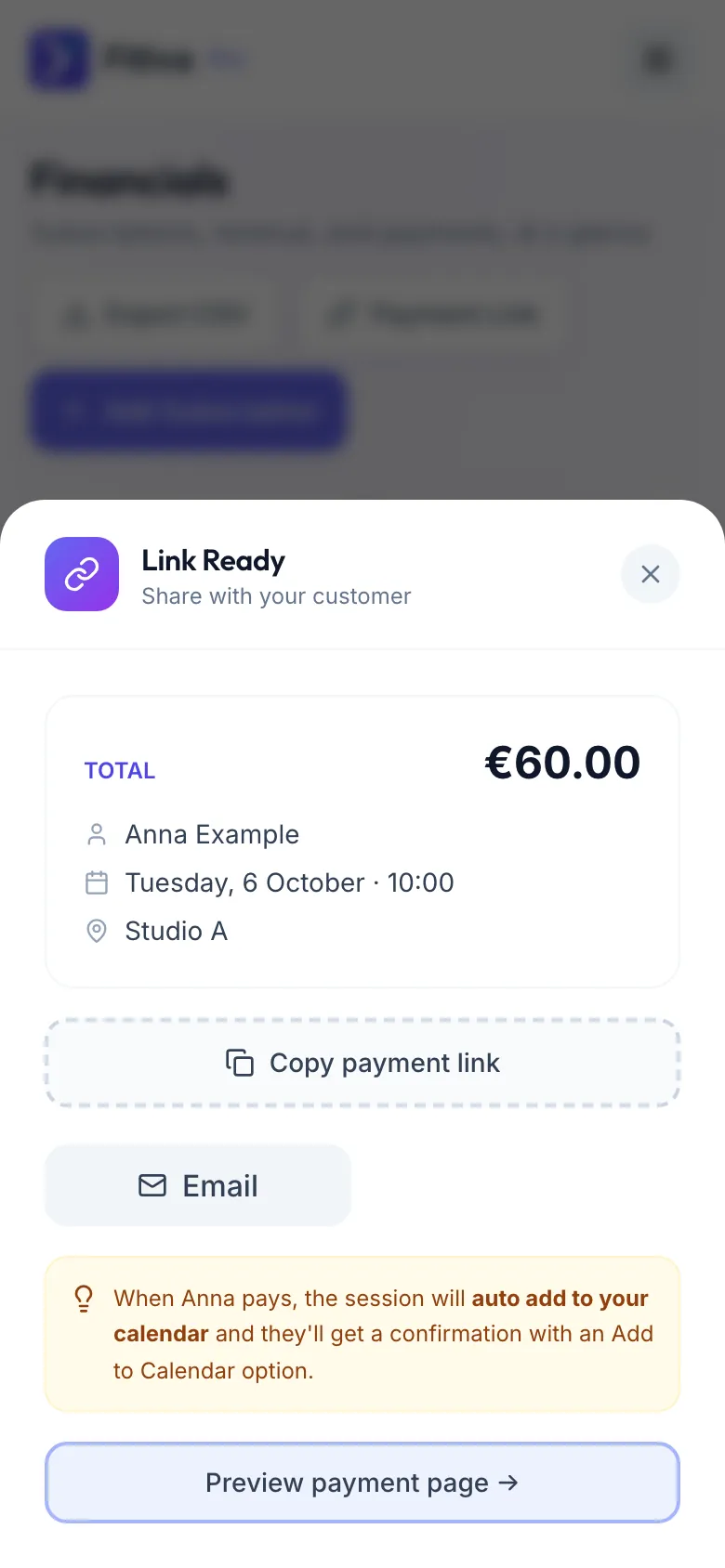
- Share it with Copy payment link, Email or SMS. Preview payment page shows what the customer sees.
What happens next
When the customer pays, the session is added to your calendar automatically, and they get a confirmation with an Add to Calendar option. The payment shows up in Financials.
Paid in person instead
Pick Paid in person at the top of the form and press Add session. The session goes straight into your calendar. Open it and press Mark as paid once you have the money. Fitiva takes no fee on it.
Good to know
- Customer name, amount and date are required.
- A payment link needs Stripe connected under Financials. Without it, the form warns you, and a link you send is refused when the customer tries to pay.
- Fees: your plan's platform fee plus Stripe's card fee of 1.5% + €0.25.
- For an athlete on your roster, use Send booking link on their Billing tab: the same form, already filled in. To ask a roster athlete for money that is not a session, send a payment request.
- Packages are sold under Session Packages in Financials, not with a payment link.
Looking for something else?