 Fitiva
How do I change my password?
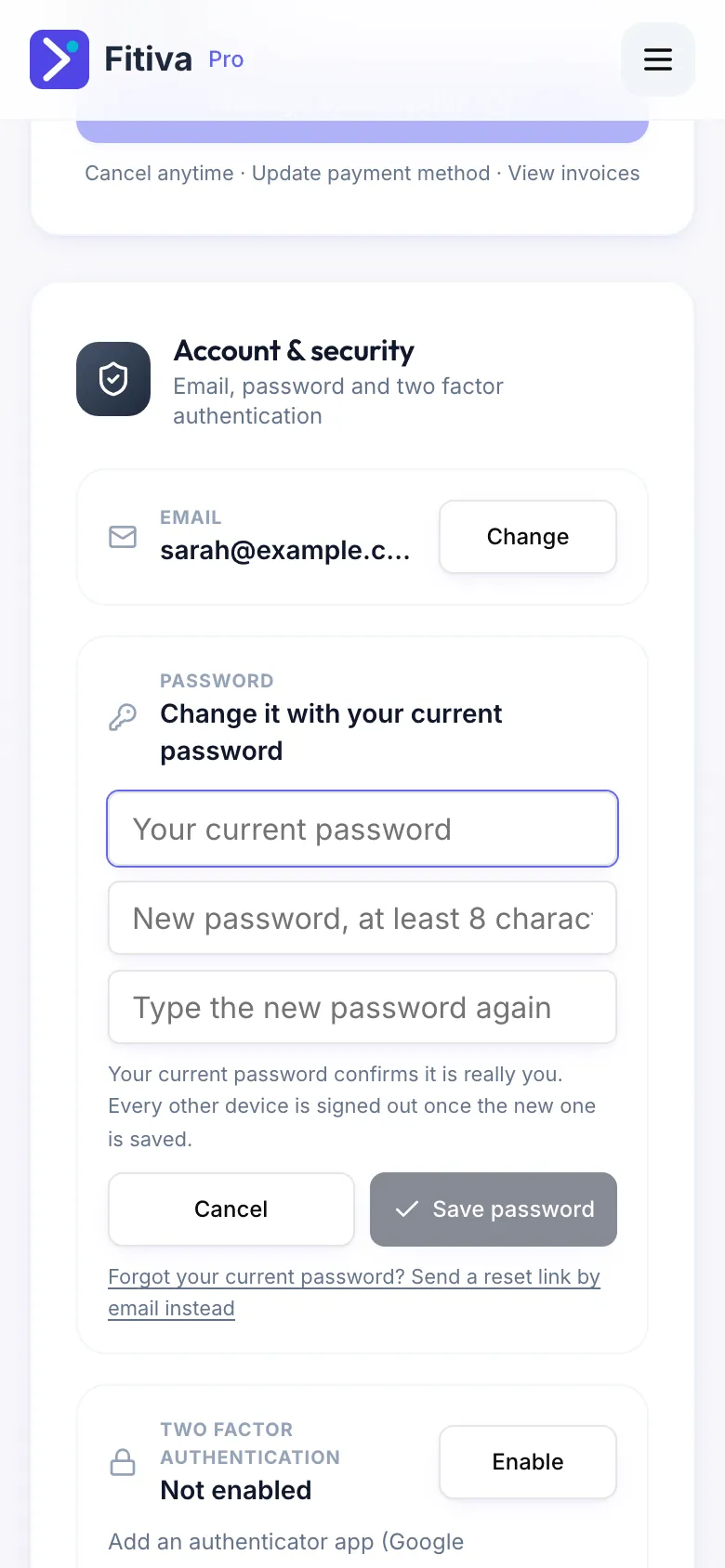
Settings, Account & security, Change next to Password: enter your current password and the new one twice.
- Open Settings and find Account & security.
- Next to Password, press Change.
- Enter your current password, then the new one twice. It needs at least 8 characters.
- Press Save password.
You then see Password changed. Every other device was signed out. You stay signed in on this device. Everywhere else, sign in with the new password.
Forgot your current password? Press Forgot your current password? Send a reset link by email instead and follow the link in the email.
Messages you might see
- That is not your current password: check it and try again.
- The two new passwords do not match: type both again.
- That is your current password already: choose a different one.
No password on your account yet? The row then shows Send reset link with the button Reset. The email lets you set one.
Looking for something else?