 Fitiva
I placed my pin on the Fitiva website: what happens now?
Your pin and your focus areas come with you into the app, you check them during setup, and nothing is public before that.
On the Fitiva website you can place a pin on the map, pick your focus areas and see a preview. The sign-up link there takes both into the app.
- Press the sign-up link under your pin. The sign-up page opens with I'm a Coach already chosen and a note that your pin and your focus areas come with you.
- Create your account and confirm your email. The confirmation link also works in a new tab or on another device.
- In setup you see Taken from the pin you placed on the website. Your location and your focus areas are already filled in.
- Check them, change anything that does not fit, and finish setup.
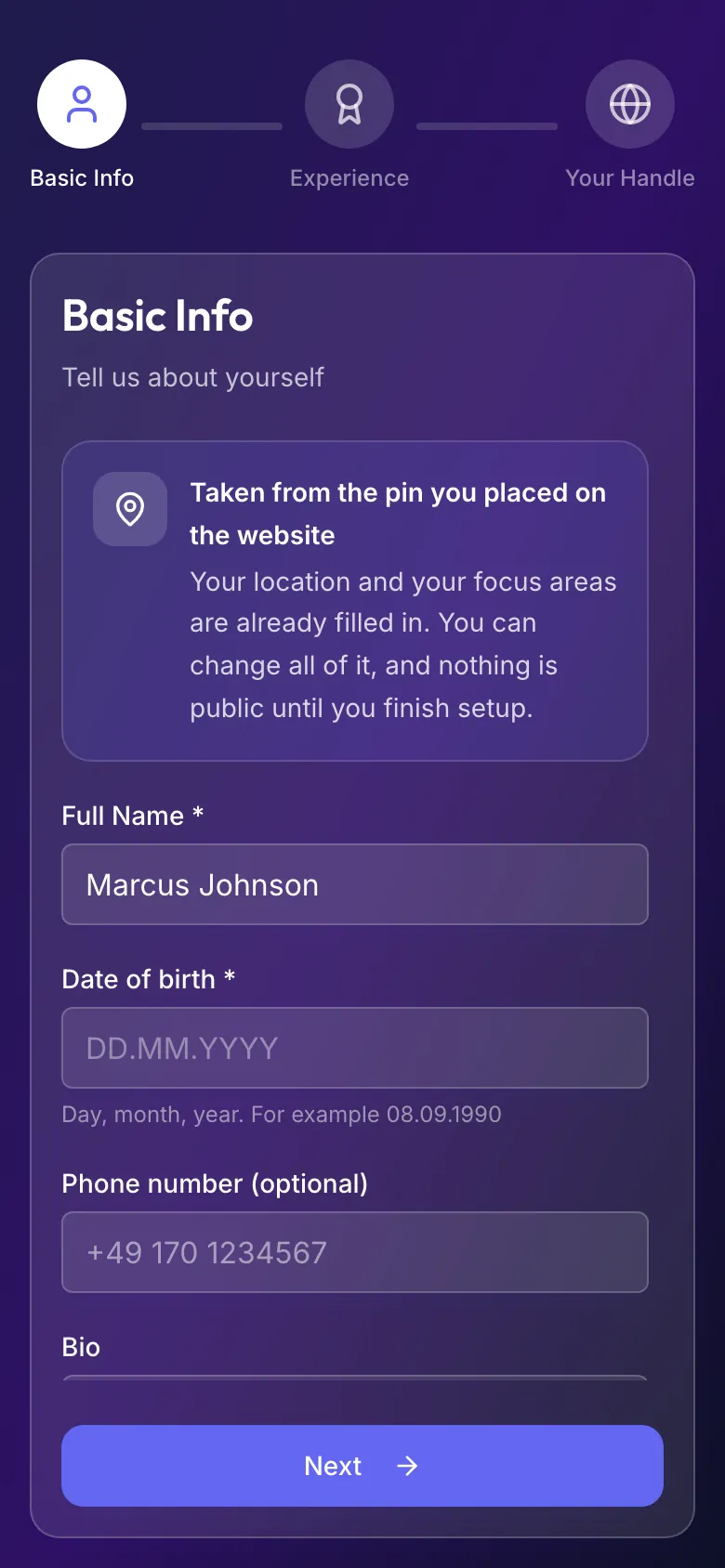
Nothing is public until you finish setup. After that, the Find a coach map shows your area as a circle of about 500 m and the district, never your street, unless you switch on Show my exact address publicly on My Profile.
Good to know
- Only your location and your focus areas are carried over. You set prices, hours and everything else in the app (see First 10 minutes as a new coach).
- The pin stays in the browser tab you came from and in your new account. If you open the link on a shared computer and walk away, the next person does not get it.
- Coaches can sign up in Germany, Austria and Switzerland.
Looking for something else?