 Fitiva
How do I edit, complete or cancel an event?
Open your event in the Calendar to edit it, see attendees, plan an agenda, mark it complete or cancel it with automatic refunds.
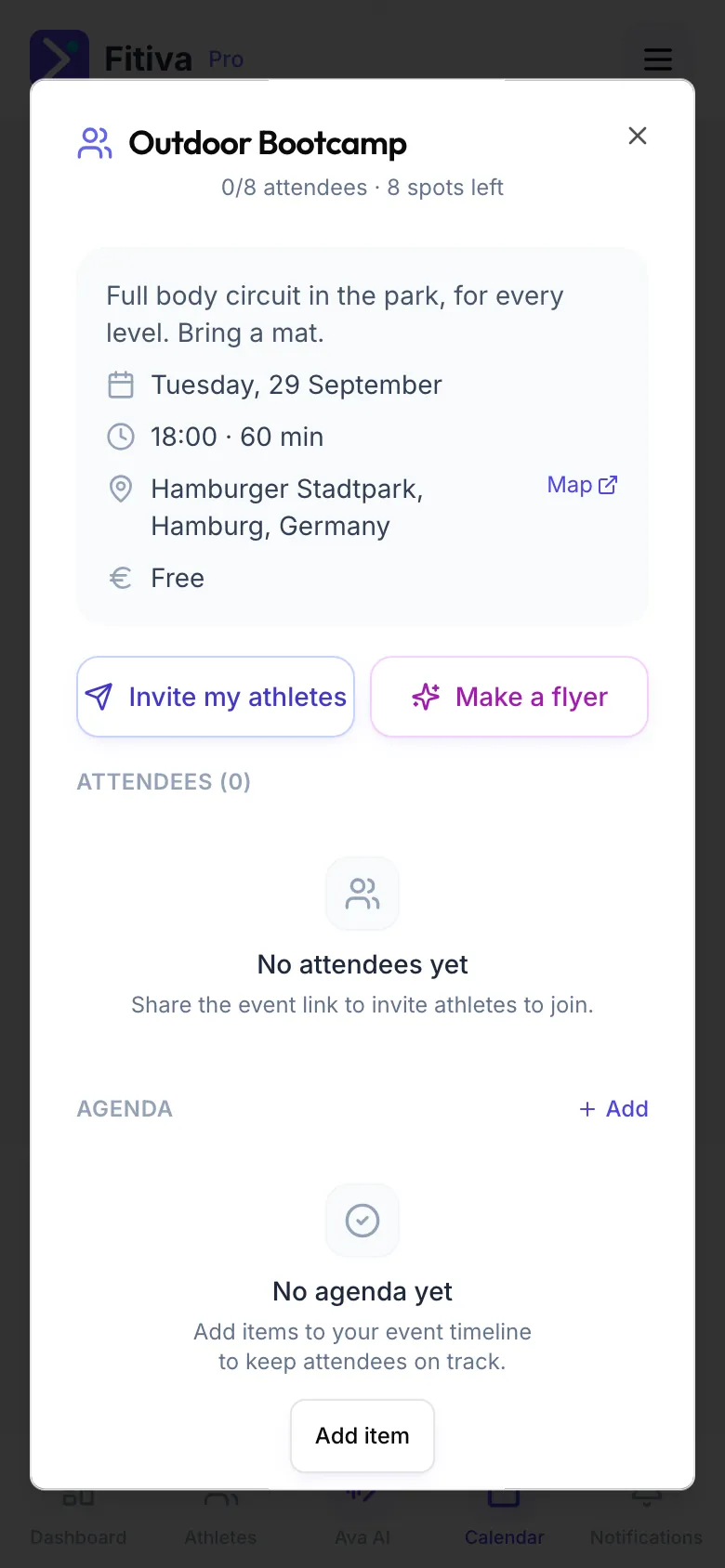
Your event's details open from the Calendar: tap the event.
Edit
Press Edit to change the title, description, date, time, duration, capacity or place, then Save. On the Events page, tapping your own event (Your event · click to edit) opens Edit event with every field.
Attendees and agenda
- Attendees lists who is coming. pending means their payment is not finished yet.
- Under Agenda press Add to plan the session step by step, for example a 10-minute warm-up jog. Tick items off as you go.
Mark it complete
After the event, press Mark Complete. Fitiva logs a workout for every confirmed attendee.
Cancel it
- Press Cancel event.
- Add a reason if you like. Attendees see it.
- Confirm.
Everyone who paid is refunded automatically. On card tickets, the platform fee and Stripe's card fee are not returned to you. If a refund does not go through, the app tells you: email hello@fitivapro.com and it gets sorted out.
Good to know
- If people have already paid, cancel the event rather than deleting it, so everyone gets their money back.
- Ticket sales and donations show under Income from Events in Financials.
- An event with 5 or more attendees earns you Fitiva Points.
- If Fitiva hides an event, it says Hidden by Fitiva with the reason. Nobody new can find or join it, and people who already joined keep their place.
Looking for something else?