 Fitiva
How do I create and sell an online course?
Create the course under Courses, add lessons with routines, plans or files, then publish it to get a public link you can share.
Build the course under Courses, add lessons, then publish it to get a public link.
Create the course
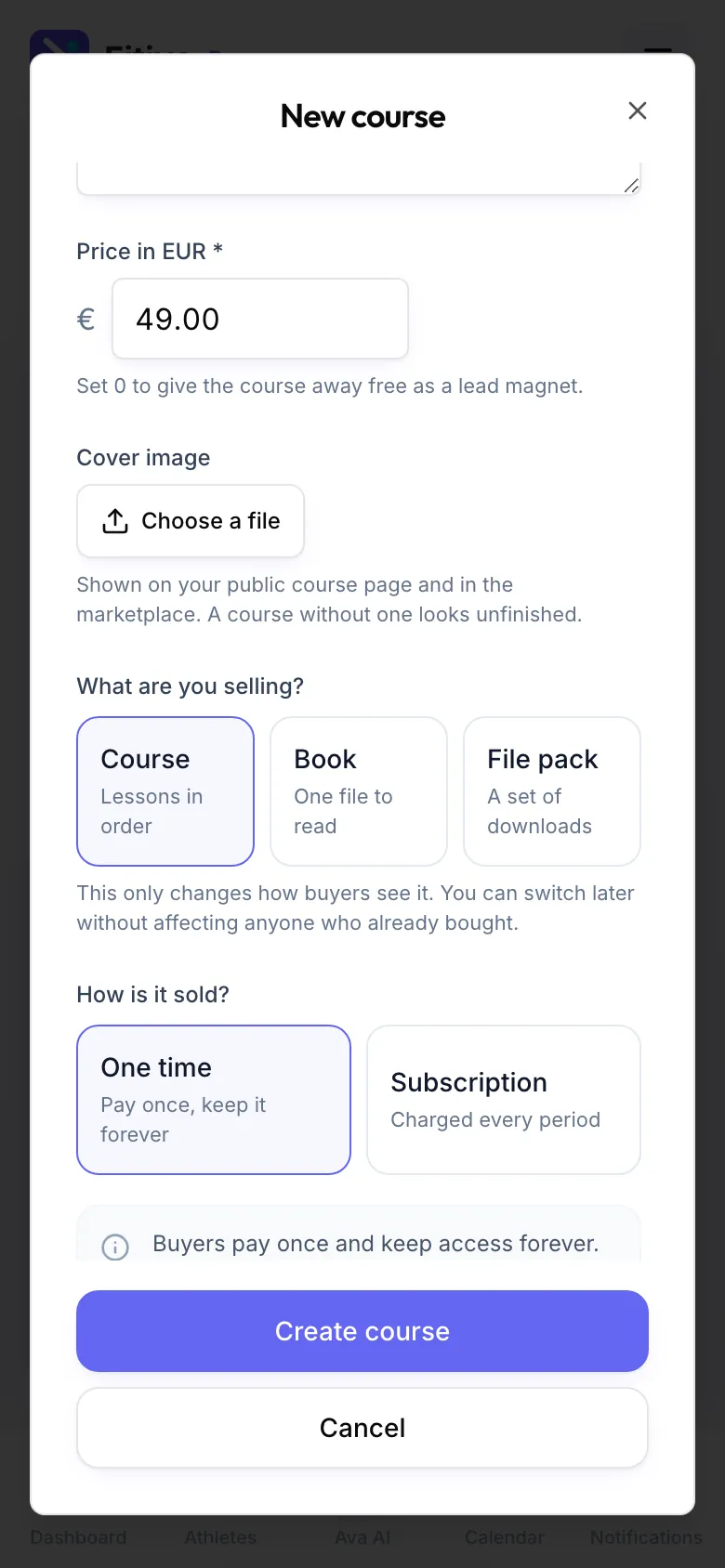
- Open Courses and press New course (or Create your first course).
- Under What are you selling? pick Course (lessons in order), Book (one file to read) or File pack (a set of downloads).
- Fill in the Title, a One line summary, the Description and a Cover image.
- Set the Price in EUR. 0 makes it free, and people skip checkout entirely.
- Under How is it sold? pick One time (pay once, keep it forever) or Subscription (Every month or Every year, needs a price above 0).
- Press Create course.
Add lessons
- On the course, press Lessons, then Add lesson.
- Give it a Lesson title and write the Lesson content.
- Attach a workout routine or a nutrition plan you already built, or upload a Lesson file (a PDF or an image that only buyers can open).
- Switch on Free preview for your best lesson, so anyone can read it before buying.
- Press Save lesson. Change the order with the arrows.
Publish and share
Press Publish. The course gets its public page, and Copy the course link gives you the link, which ends in /course/ followed by the course's short name. A course needs at least one lesson before you can publish it.
Good to know
- Paid courses need Stripe connected under Financials; without it, buyers cannot check out.
- The fee card at the top of Courses shows your current course fee.
- Pause stops new sales, Unpublish takes the page down. People who already bought keep their access either way.
- A course that somebody bought cannot be deleted. Pause it instead.
- Everything you attach can be read by every buyer, so attach templates rather than a plan written for one athlete.
- Courses are bought on the website, not inside the installed app.
Looking for something else?